WolfieWeb Advanced Pi Lab
Advanced Raspberry Pi Build Guides

Next-Level Raspberry Pi Tutorials That Deserve Their Own Page

This page picks up where your beginner Raspberry Pi page leaves off. The reader moves into web dashboards, MQTT messaging, computer vision, servo control, and real database logging.

Each lesson includes parts, wiring direction, code, testing, mistakes to avoid, and a practical upgrade path.

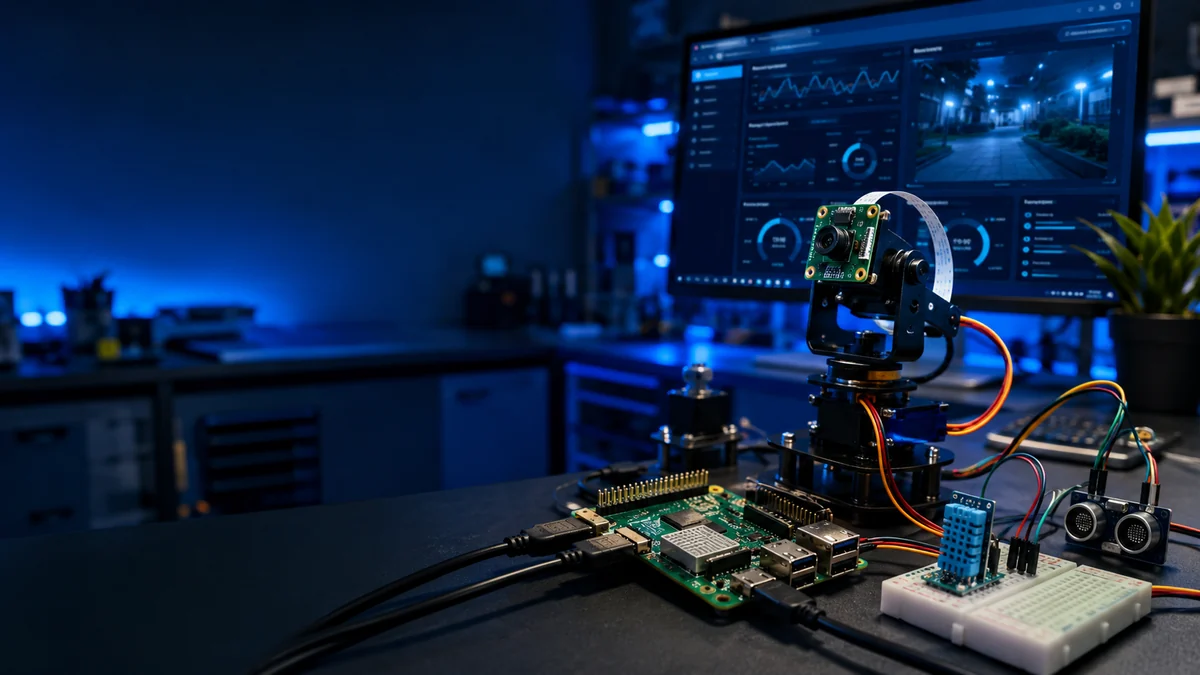
Advanced Raspberry Pi electronics lab with sensors camera servo mount and dashboard

Pick an Advanced Tutorial

These are built as the next chapter after LED, button, sensor, camera, and motion basics. The reader should be comfortable using Terminal and editing Python files.

Advanced Learning Path

Finish These in Order

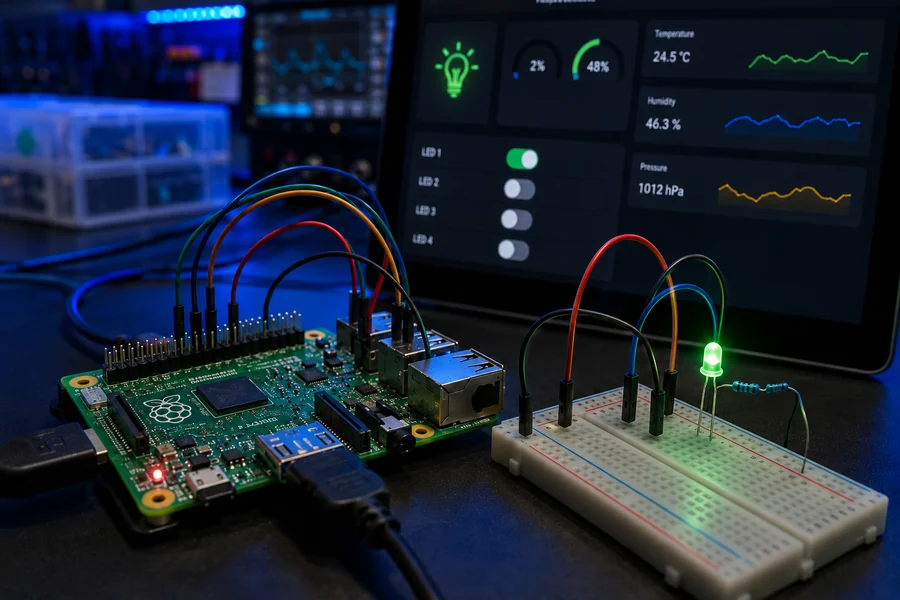
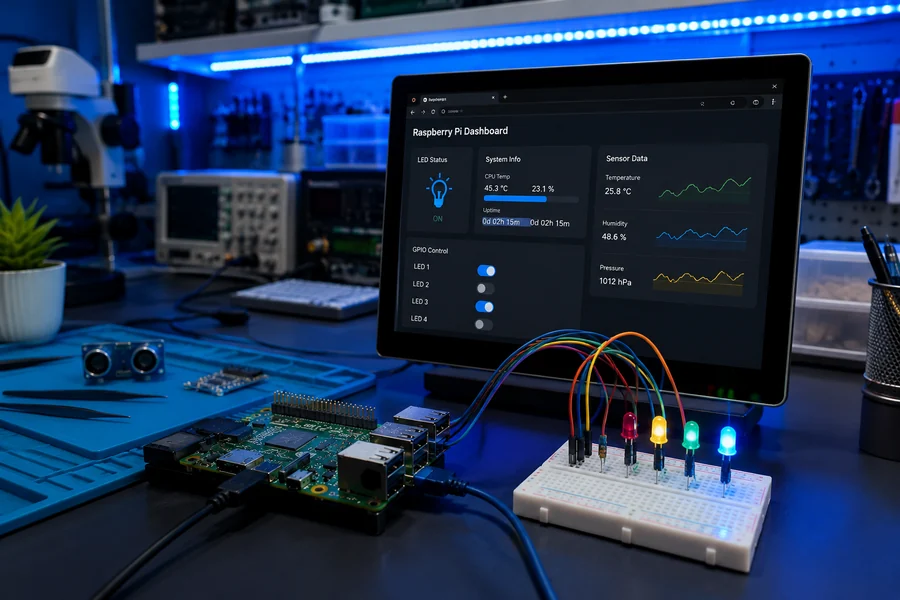
Raspberry Pi Flask web dashboard tutorial with LED and sensor controls
Advanced Tutorial 1 · Intermediate
Step 1 of 5 · Browser control and GPIO output

Raspberry Pi Flask Web Dashboard

Goal: Build a local browser dashboard that shows Pi status and lets the reader control a GPIO output without touching the Pi directly.

What should happen: A phone, tablet, or desktop on the same Wi-Fi opens the Pi dashboard and turns an LED on and off from the browser.

Parts Needed

Easy Build Steps

  1. Wire the LED long leg through a resistor to GPIO17, physical pin 11.
  2. Connect the LED short leg to a ground pin such as physical pin 6.
  3. Boot the Pi, open Terminal, and update packages with sudo apt update.
  4. Install Flask and gpiozero with pip3 install flask gpiozero.
  5. Find your Pi IP address with hostname -I.

How This Tutorial Works

Start simple: get the LED blinking locally first. Once the LED is known-good, the web dashboard becomes a software problem instead of a wiring mystery. The key setting is host='0.0.0.0'. Without that, Flask may only answer on the Pi itself.

Mistakes to Avoid

  • Forgetting the resistor on the LED.
  • Using physical pin 17 instead of GPIO17.
  • Leaving Flask on 127.0.0.1 only.
  • Trying to expose the dashboard publicly before adding authentication.

Starter Code

from flask import Flask, redirect
from gpiozero import LED
from datetime import datetime

app = Flask(__name__)
led = LED(17)

@app.route('/')
def home():
    state = 'ON' if led.value else 'OFF'
    now = datetime.now().strftime('%Y-%m-%d %H:%M:%S')
    return f'''
    <h1>WolfieWeb Pi Dashboard</h1>
    <p>LED status: <strong>{state}</strong></p>
    <p>Last refresh: {now}</p>
    <a href="/on">Turn LED ON</a> | <a href="/off">Turn LED OFF</a>
    '''

@app.route('/on')
def on():
    led.on()
    return redirect('/')

@app.route('/off')
def off():
    led.off()
    return redirect('/')

app.run(host='0.0.0.0', port=5000)
Close-up image for Raspberry Pi Flask Web Dashboard

Click the image to open it in the WolfieWeb lightbox.

Quick Test

Run python3 app.py, then open http://PI-IP-ADDRESS:5000 from another device on the same Wi-Fi. If the page loads but the LED does not change, the wiring is wrong. If the page only loads on the Pi, the host setting or firewall is the problem.

Upgrade Path

  • Add a temperature display card.
  • Add buttons for multiple GPIO outputs.
  • Use CSS to make the dashboard match WolfieWeb style.
  • Add a login before controlling anything important.
✔ Micro-win: Tutorial 1 gives the reader a real advanced Pi skill they can reuse in bigger robotics, IoT, and automation builds.
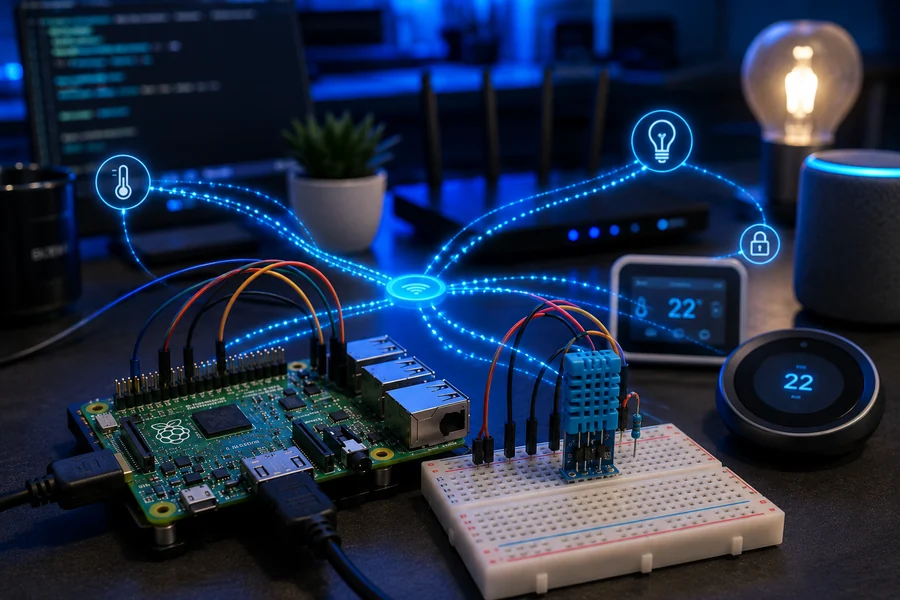
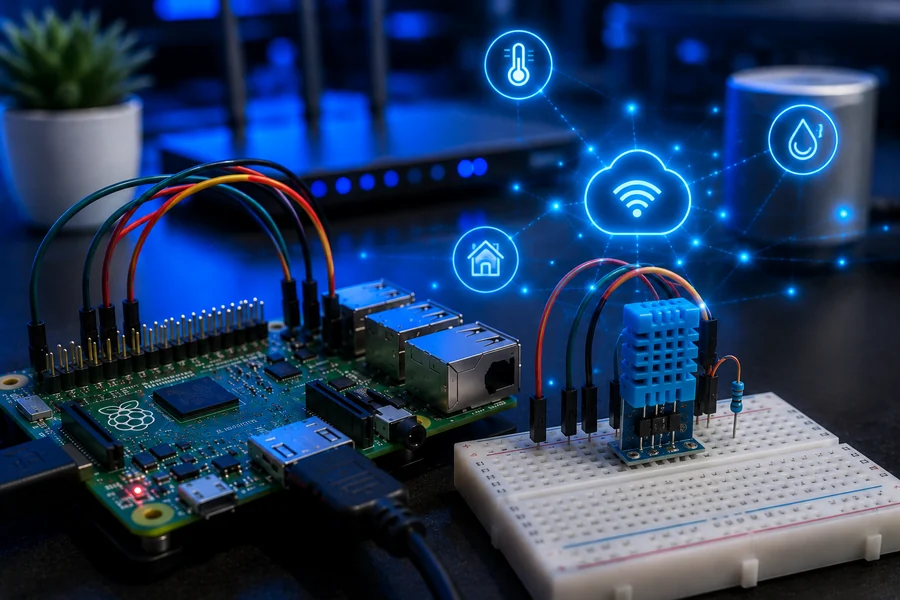
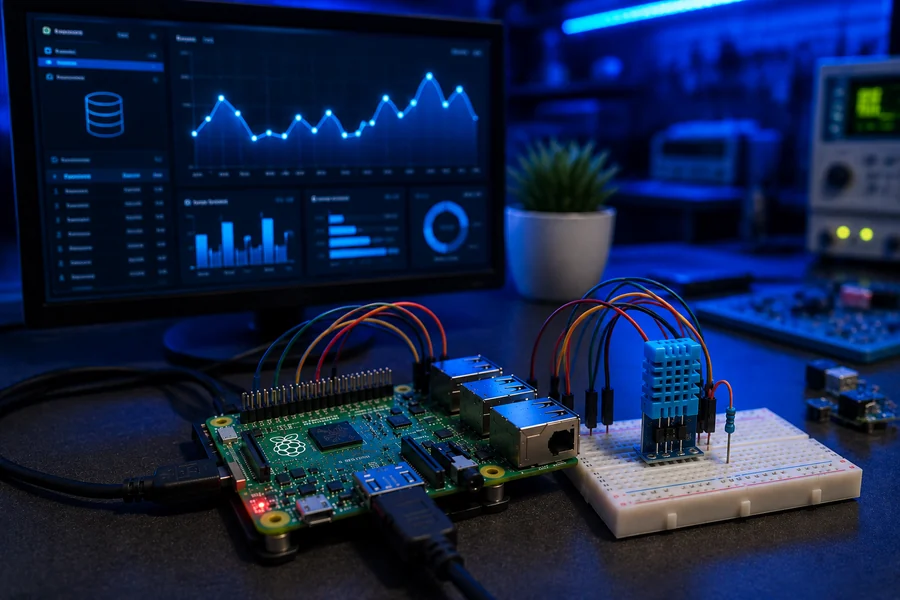
Raspberry Pi MQTT sensor hub with temperature sensor and network messages
Advanced Tutorial 2 · Intermediate
Step 2 of 5 · Network messages and sensor publishing

Raspberry Pi MQTT Sensor Hub

Goal: Publish temperature and humidity readings over MQTT so other devices, dashboards, or scripts can react to the Pi.

What should happen: The Pi sends readings to a topic like home/pi/lab every few seconds, and another terminal can subscribe to see them live.

Parts Needed

Easy Build Steps

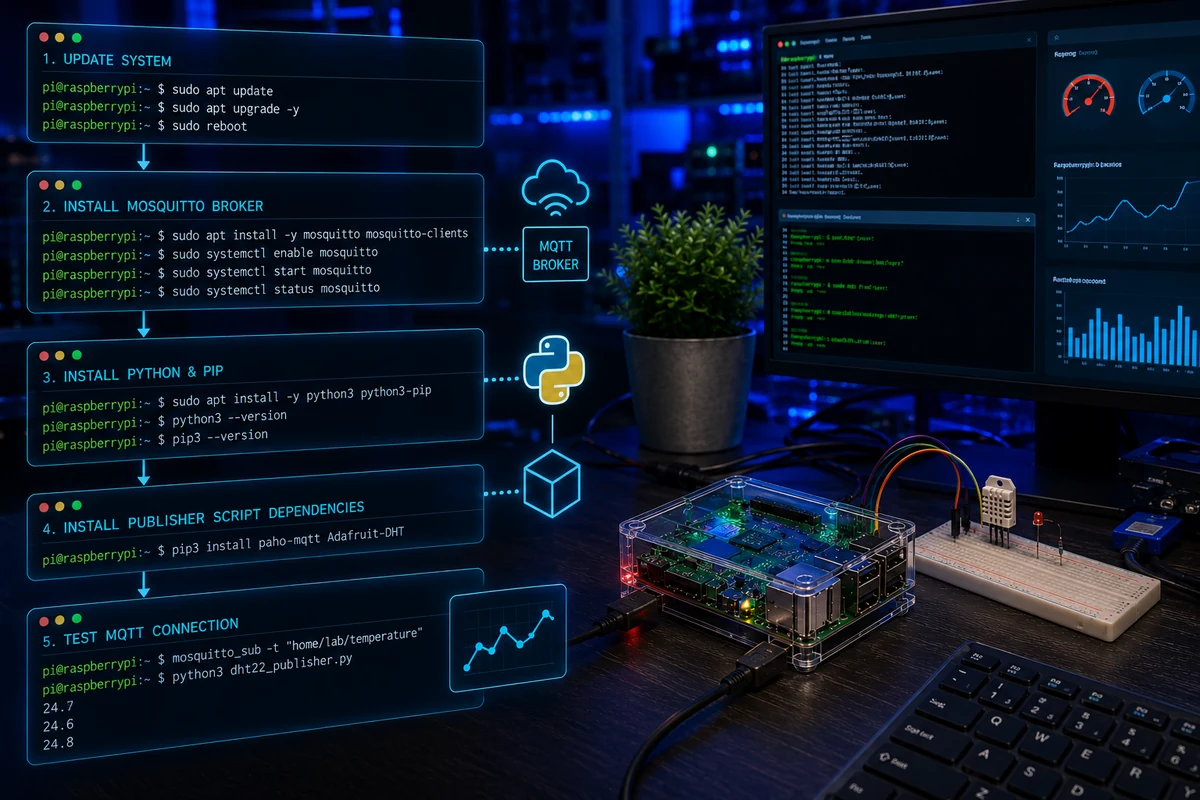
  1. Install the MQTT broker: sudo apt install mosquitto mosquitto-clients.
  2. Enable it at boot with sudo systemctl enable mosquitto.
  3. Wire DHT22 VCC to 3.3V, GND to GND, and DATA to GPIO4.
  4. Install libraries: pip3 install paho-mqtt adafruit-circuitpython-dht.
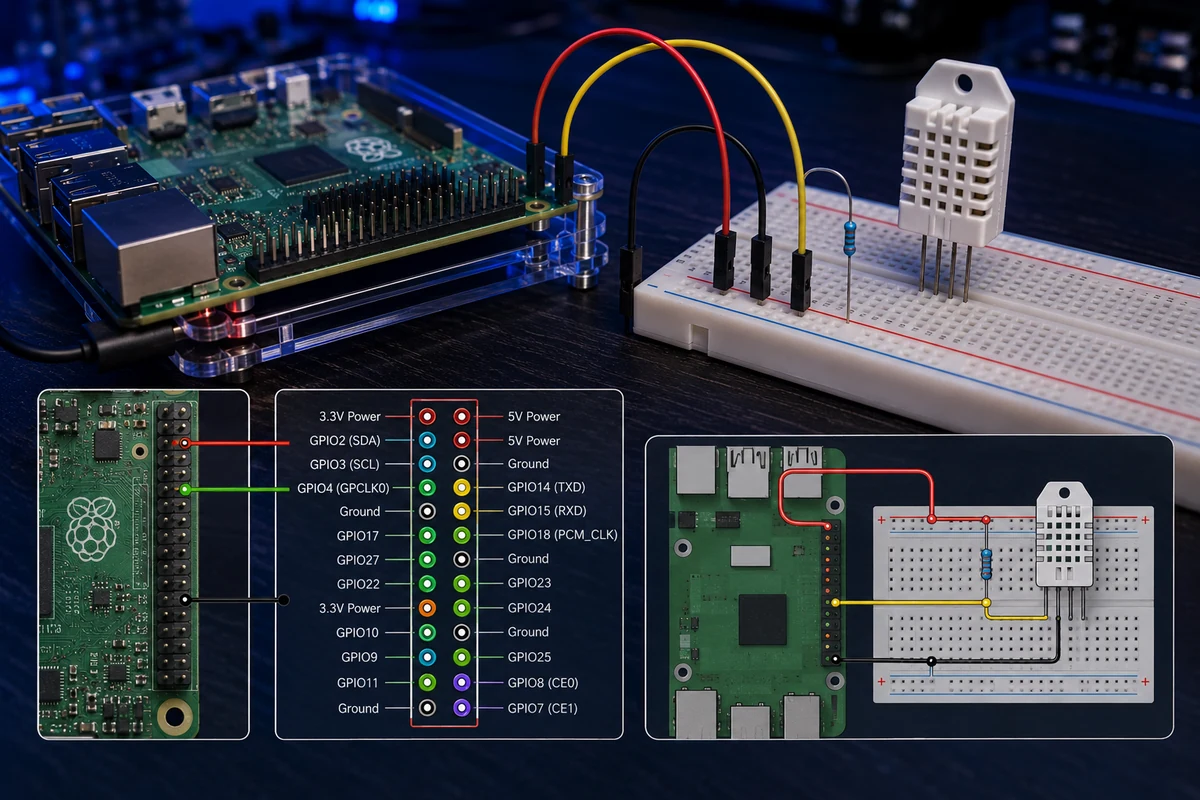
  5. Open one terminal for the subscriber and one for the publisher.

How This Tutorial Works

MQTT is the clean way to make a Pi talk to other devices. The Pi publishes messages. Other devices subscribe. That keeps projects flexible because the sensor script does not need to know who is listening.

Mistakes to Avoid

  • Misspelling the topic name.
  • Using 5V signal on a 3.3V GPIO input.
  • Blaming MQTT when the sensor wiring is actually wrong.
  • Forgetting that Wi-Fi devices must reach the broker IP.

Starter Code

import time
import board
import adafruit_dht
import paho.mqtt.client as mqtt

sensor = adafruit_dht.DHT22(board.D4)
client = mqtt.Client(mqtt.CallbackAPIVersion.VERSION2)
client.connect('localhost', 1883, 60)

while True:
    try:
        temp = sensor.temperature
        humidity = sensor.humidity
        message = f'temp={temp},humidity={humidity}'
        client.publish('home/pi/lab', message)
        print('Published:', message)
    except RuntimeError as error:
        print('Sensor read failed:', error.args[0])
    time.sleep(5)
Close-up image for Raspberry Pi MQTT Sensor Hub

Click the image to open it in the WolfieWeb lightbox.

Quick Test

In a second terminal, run mosquitto_sub -h localhost -t home/pi/lab. Then start the Python script. If messages appear, the broker and publisher are working.

Upgrade Path

  • Publish motion alerts from the camera tutorial.
  • Subscribe from Node-RED or Home Assistant.
  • Send JSON instead of comma text.
  • Log the MQTT readings into SQLite.
✔ Micro-win: Tutorial 2 gives the reader a real advanced Pi skill they can reuse in bigger robotics, IoT, and automation builds.
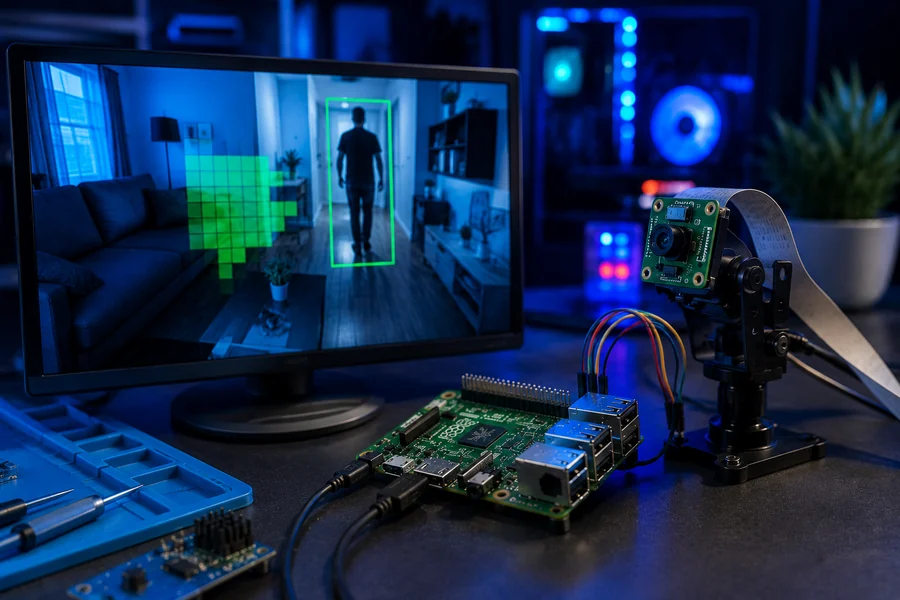
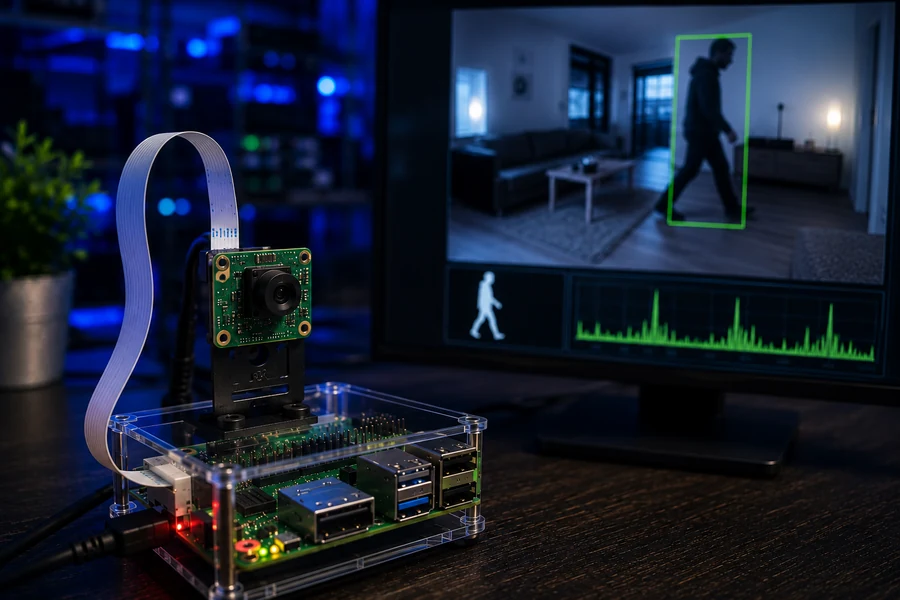
Raspberry Pi OpenCV camera motion detection tutorial
Advanced Tutorial 3 · Intermediate Plus
Step 3 of 5 · Computer vision and motion snapshots

OpenCV Motion Camera

Goal: Use OpenCV to compare camera frames and save a snapshot when real movement is detected.

What should happen: The camera watches a room, marks motion areas, and saves image files only when motion crosses the threshold.

Parts Needed

Easy Build Steps

  1. Connect and test the camera first. Do not start with OpenCV until the camera works.
  2. Install OpenCV with pip3 install opencv-python.
  3. Create a folder named motion_captures.
  4. Place the camera where lighting is stable.
  5. Run the script and tune the threshold value.

How This Tutorial Works

This build teaches a hard truth: computer vision is sensitive to lighting. A bright window, moving curtain, or flickering monitor can create false motion. Get the camera stable first, then adjust the contour area threshold.

Mistakes to Avoid

  • Testing in poor lighting.
  • Using too low a motion threshold.
  • Letting the camera point at windows, fans, curtains, or reflections.
  • Expecting a Pi Zero to handle heavy vision smoothly.

Starter Code

import cv2
import os
from datetime import datetime

os.makedirs('motion_captures', exist_ok=True)
camera = cv2.VideoCapture(0)

ret, frame1 = camera.read()
ret, frame2 = camera.read()

while camera.isOpened():
    diff = cv2.absdiff(frame1, frame2)
    gray = cv2.cvtColor(diff, cv2.COLOR_BGR2GRAY)
    blur = cv2.GaussianBlur(gray, (5, 5), 0)
    _, thresh = cv2.threshold(blur, 25, 255, cv2.THRESH_BINARY)
    dilated = cv2.dilate(thresh, None, iterations=3)
    contours, _ = cv2.findContours(dilated, cv2.RETR_TREE, cv2.CHAIN_APPROX_SIMPLE)

    motion_found = False
    for contour in contours:
        if cv2.contourArea(contour) < 2500:
            continue
        motion_found = True
        x, y, w, h = cv2.boundingRect(contour)
        cv2.rectangle(frame1, (x, y), (x+w, y+h), (0, 255, 0), 2)

    if motion_found:
        filename = datetime.now().strftime('motion_captures/%Y-%m-%d_%H-%M-%S.jpg')
        cv2.imwrite(filename, frame1)
        print('Saved:', filename)

    frame1 = frame2
    ret, frame2 = camera.read()
    if not ret:
        break

camera.release()
Close-up image for OpenCV Motion Camera

Click the image to open it in the WolfieWeb lightbox.

Quick Test

Walk across the camera view. You should see saved JPG files in motion_captures. If it saves nonstop, raise the contour area threshold or improve lighting.

Upgrade Path

  • Publish an MQTT alert when motion is detected.
  • Add timestamps to the image.
  • Trigger a servo pan movement after detection.
  • Build a small dashboard showing the latest capture.
✔ Micro-win: Tutorial 3 gives the reader a real advanced Pi skill they can reuse in bigger robotics, IoT, and automation builds.
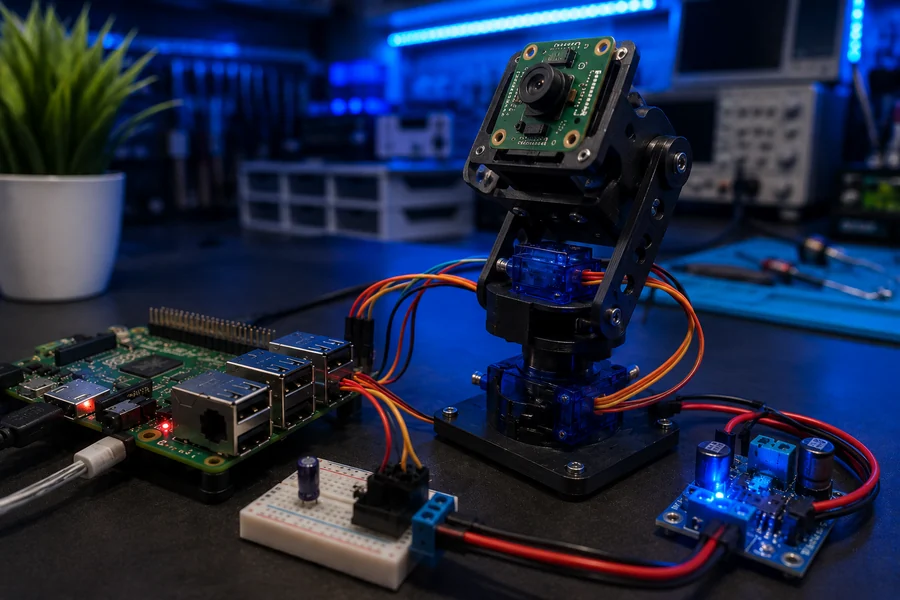
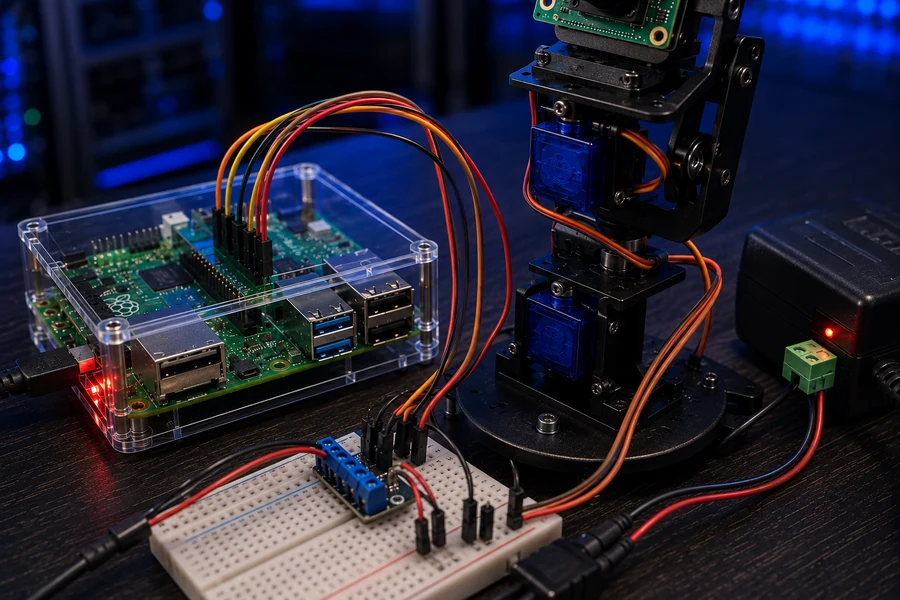
Raspberry Pi servo pan-tilt camera mount with external power wiring
Advanced Tutorial 4 · Advanced Hardware
Step 4 of 5 · Servo control and external power

Servo Pan-Tilt Camera Mount

Goal: Control a two-axis pan-tilt mount with two servos while protecting the Raspberry Pi from servo power spikes.

What should happen: The Pi moves the mount left, right, up, and down using GPIO signal wires while the servos draw power from an external 5V supply.

Parts Needed

Easy Build Steps

  1. Do not power both servos from the Pi 5V pin for this project. Use external 5V power.
  2. Connect servo red wires to external 5V and brown/black wires to external ground.
  3. Connect external ground to Raspberry Pi ground. This common ground is required.
  4. Connect pan servo signal to GPIO18 and tilt servo signal to GPIO19.
  5. Test one servo first, then add the second.

How This Tutorial Works

This is where beginners fry parts if they rush. Servos can pull more current than the Pi wants to supply. The signal wire comes from the Pi, but servo power should come from a separate 5V source. The ground must be shared or the signal has no reference.

Mistakes to Avoid

  • Powering servos directly from the Pi during heavy movement.
  • Forgetting common ground.
  • Reversing servo connector polarity.
  • Forcing the pan-tilt bracket by hand while powered.

Starter Code

from gpiozero import AngularServo
from time import sleep

pan = AngularServo(18, min_angle=-90, max_angle=90)
tilt = AngularServo(19, min_angle=-45, max_angle=45)

def move_slow(servo, start, stop, step=5):
    if start > stop:
        step = -abs(step)
    else:
        step = abs(step)
    for angle in range(start, stop + step, step):
        servo.angle = angle
        sleep(0.08)

while True:
    move_slow(pan, -60, 60)
    move_slow(pan, 60, -60)
    move_slow(tilt, -30, 30)
    move_slow(tilt, 30, -30)
Close-up image for Servo Pan-Tilt Camera Mount

Click the image to open it in the WolfieWeb lightbox.

Quick Test

The servos should sweep smoothly. If they jitter, reset, or make the Pi reboot, your power supply is weak or the grounds are not connected correctly.

Upgrade Path

  • Add dashboard buttons for pan and tilt.
  • Attach the OpenCV camera from the previous lesson.
  • Add preset positions.
  • Use MQTT commands to point the camera remotely.
✔ Micro-win: Tutorial 4 gives the reader a real advanced Pi skill they can reuse in bigger robotics, IoT, and automation builds.
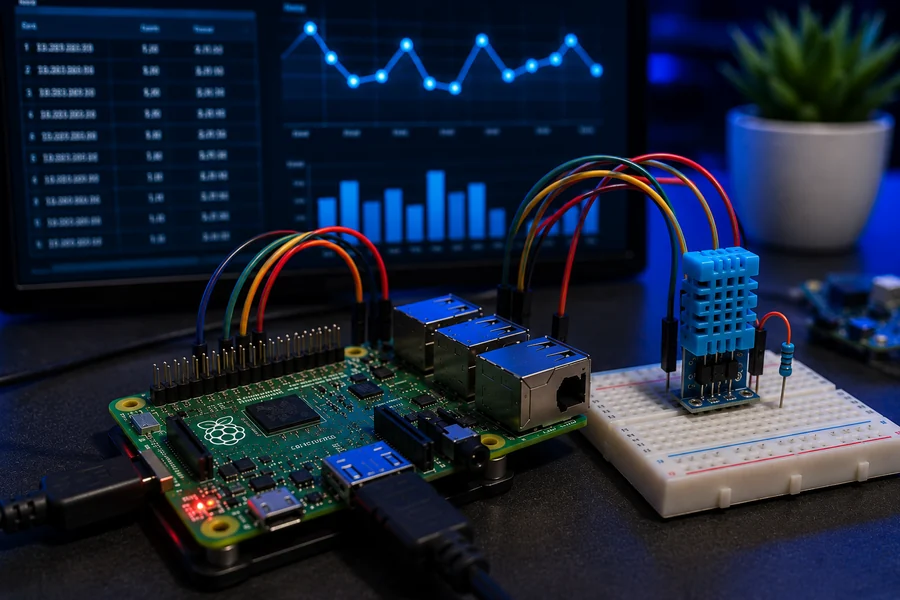
Raspberry Pi SQLite sensor data logger with dashboard chart
Advanced Tutorial 5 · Advanced Software
Step 5 of 5 · Database storage and charts

SQLite Sensor Data Logger

Goal: Store sensor readings in a local SQLite database so the Pi can build history instead of only showing live values.

What should happen: The Pi creates a database, records timestamped readings, and lets the reader query recent measurements.

Parts Needed

Easy Build Steps

  1. Wire the sensor and confirm it prints live readings first.
  2. Create a project folder named pi_logger.
  3. Create the SQLite database from Python.
  4. Insert one reading every minute or every five minutes.
  5. Query the latest readings before building a chart.

How This Tutorial Works

Logging data is what turns a sensor toy into a useful tool. SQLite is perfect for local Pi projects because it is built into Python and does not require a separate database server.

Mistakes to Avoid

  • Writing readings every second and filling the card for no reason.
  • Not committing database inserts.
  • Skipping the live sensor test before adding the database.
  • Using a cheap microSD card for long-term writes.

Starter Code

import sqlite3
import time
from datetime import datetime

DB = 'wolfieweb_sensor_log.db'

conn = sqlite3.connect(DB)
cur = conn.cursor()
cur.execute('''
CREATE TABLE IF NOT EXISTS readings (
    id INTEGER PRIMARY KEY AUTOINCREMENT,
    created_at TEXT NOT NULL,
    temperature REAL NOT NULL,
    humidity REAL NOT NULL
)
''')
conn.commit()

def fake_sensor_reading():
    # Replace this with your real DHT22 or BME280 reading.
    return 22.4, 45.8

while True:
    temp, humidity = fake_sensor_reading()
    now = datetime.now().isoformat(timespec='seconds')
    cur.execute('INSERT INTO readings (created_at, temperature, humidity) VALUES (?, ?, ?)', (now, temp, humidity))
    conn.commit()
    print('Saved:', now, temp, humidity)
    time.sleep(60)
Close-up image for SQLite Sensor Data Logger

Click the image to open it in the WolfieWeb lightbox.

Quick Test

Run sqlite3 wolfieweb_sensor_log.db and then SELECT * FROM readings ORDER BY id DESC LIMIT 5;. If rows appear, your logger is working.

Upgrade Path

  • Add a Flask route that shows the latest 20 readings.
  • Export the table to CSV.
  • Graph daily minimum and maximum values.
  • Move the database to a USB SSD for serious logging.
✔ Micro-win: Tutorial 5 gives the reader a real advanced Pi skill they can reuse in bigger robotics, IoT, and automation builds.

Share This Advanced Raspberry Pi Page

This page is built for readers who finished the basics and want real projects they can grow into robotics, IoT, and smart-home systems.