Tutorial 1 · Beginner
Step 1 of 5 · Learn GPIO output
GPIO LED Output
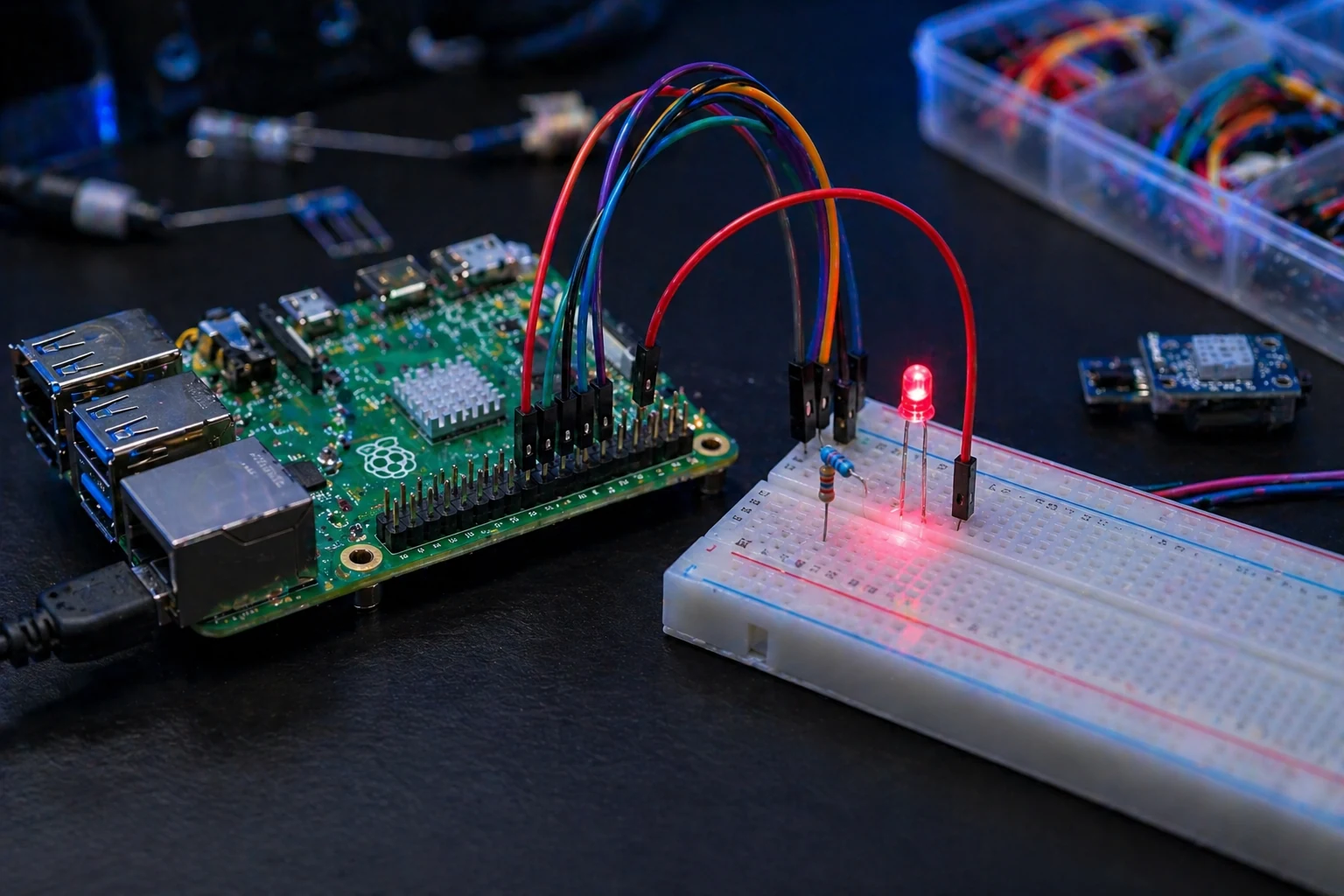
Goal: Make an LED blink from Python so you understand GPIO output, resistor safety, and the difference between physical pin numbers and GPIO numbers.
What should happen: The LED turns on for one second, turns off for one second, and repeats.
Parts Needed
- Raspberry Pi with Raspberry Pi OS
- Breadboard
- 1 LED
- 220Ω or 330Ω resistor
- 2 jumper wires
Helpful Starter Parts
A basic Raspberry Pi electronics kit with LEDs, resistors, jumper wires, and a breadboard will cover this first lesson and several lessons after it.
View Starter Parts →
Wiring Steps
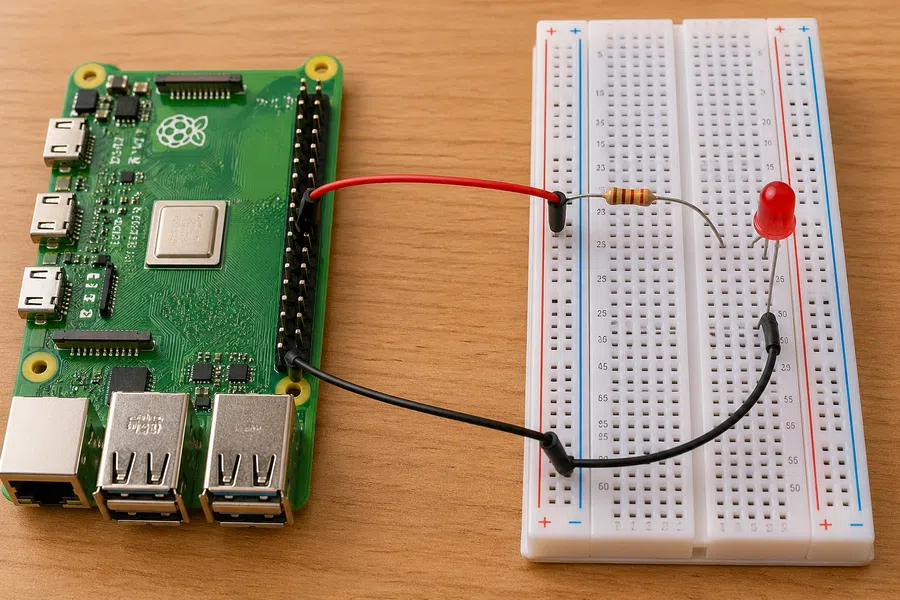
- Connect GPIO17, physical pin 11, to one side of the resistor.
- Connect the other side of the resistor to the long LED leg.
- Connect the short LED leg to GND, physical pin 6.
- Do not skip the resistor. That is how LEDs get burned out.
Easy Build Steps
- Shut the Pi down before wiring.
- Build the circuit on the breadboard.
- Boot the Pi and open Terminal.
- Create
led_blink.py.
- Paste the code and run
python3 led_blink.py.
Mistakes to Avoid
- Using physical pin 17 instead of GPIO17.
- Putting the LED in backward.
- Forgetting the resistor.
- Loose jumper wires that look connected but are not.
Starter Code
from gpiozero import LED
from time import sleep

led = LED(17)

while True:
    led.on()
    sleep(1)
    led.off()
    sleep(1)
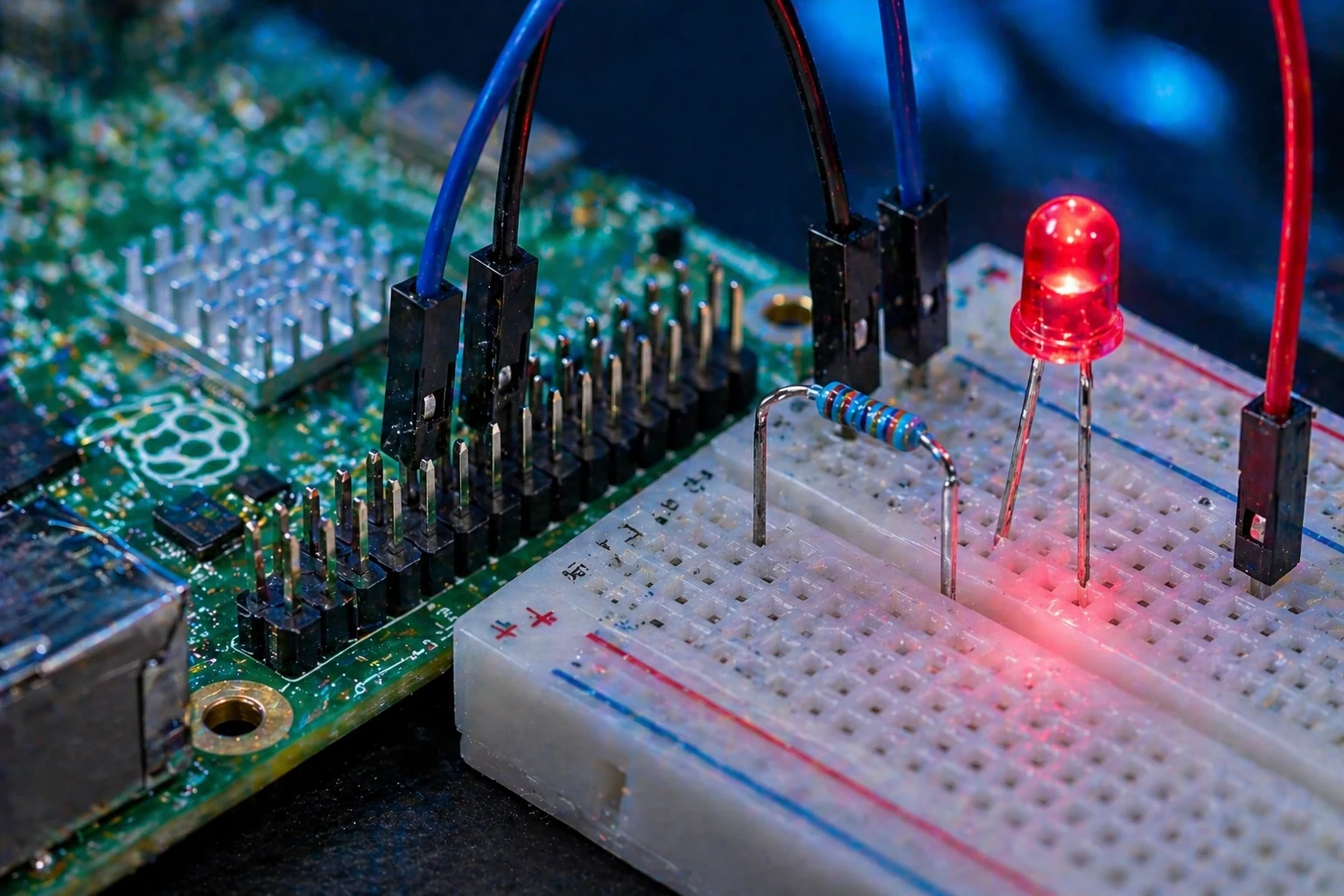
Suggested instruction image: close-up view of GPIO17 wire, resistor, LED legs, and ground wire.
Quick Test
Run the code. If the LED blinks, the wiring and Python setup are good. If it stays dark, flip the LED first. If that fails, move the jumper wire back to GPIO17 and check the ground pin.
Upgrade: Add two more LEDs and make a simple traffic light.
✔ Micro-win: You just controlled real hardware with Python.
Tutorial 3 · Beginner Plus
Step 3 of 5 · Read sensor data
Temperature Sensor Monitor
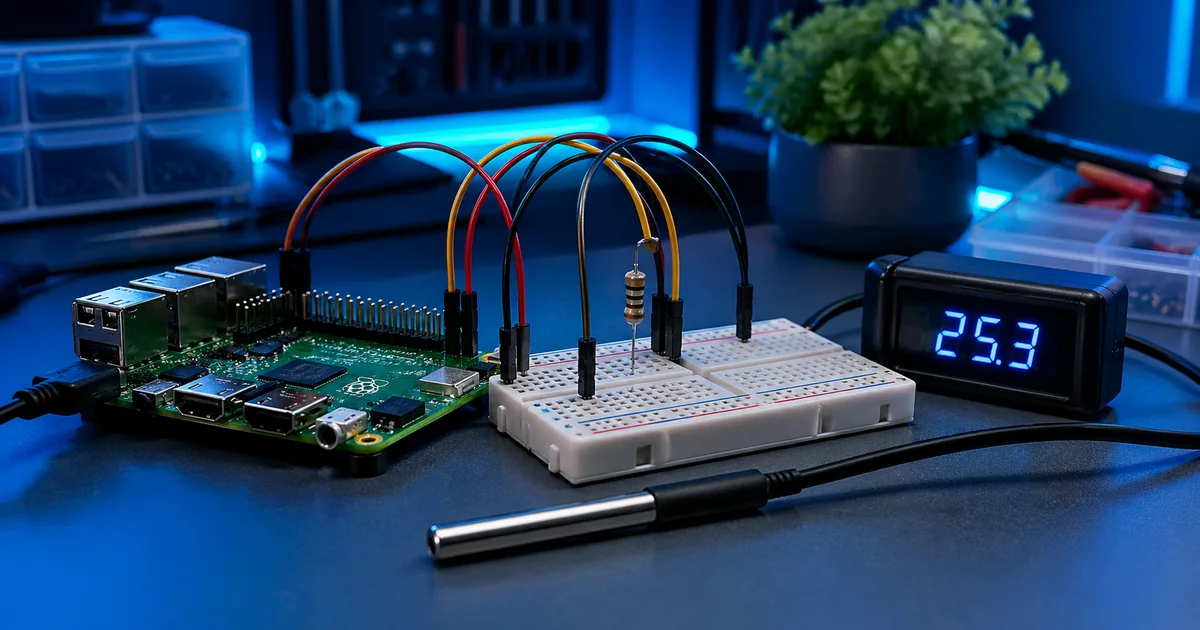
Goal: Read real temperature data from a DS18B20 sensor and print clean readings in the terminal. This teaches sensor wiring, GPIO4 data input, pull-up resistors, and basic data logging.
What should happen: The terminal prints updated temperature readings every few seconds, and you can expand it into a CSV logger or dashboard.
Parts Needed
- Raspberry Pi with Raspberry Pi OS
- DS18B20 waterproof temperature sensor
- 4.7kΩ resistor for the DATA pull-up
- Breadboard
- Jumper wires
Helpful Sensor Parts
The DS18B20 is a stronger beginner choice for a temperature monitor because it is durable, accurate enough for room projects, and easy to log over time.
View Sensor Parts →
Wiring Steps
- Connect DS18B20 VCC to 3.3V.
- Connect DS18B20 GND to Pi GND.
- Connect DS18B20 DATA to GPIO4, physical pin 7.
- Place a 4.7kΩ resistor between VCC and DATA. Do not skip this pull-up resistor.
- Power on only after checking the sensor wire order.
Easy Build Steps
- Wire the DS18B20 while the Pi is powered off.
- Enable the 1-Wire interface in Raspberry Pi configuration.
- Reboot the Pi.
- Create
temp_monitor.py.
- Run the script and confirm stable readings.
Mistakes to Avoid
- Forgetting the 4.7kΩ pull-up resistor.
- Mixing up red, yellow, and black sensor wires.
- Using GPIO numbering wrong: DATA goes to GPIO4, physical pin 7.
- Expecting readings before enabling 1-Wire.
Starter Code: Read Temperature
from w1thermsensor import W1ThermSensor
from time import sleep

sensor = W1ThermSensor()

while True:
    temp_c = sensor.get_temperature()
    temp_f = temp_c * 9 / 5 + 32
    print(f"Temperature: {temp_c:.2f} C / {temp_f:.2f} F")
    sleep(3)
Final Boss Upgrade: Save Temperature to CSV
from w1thermsensor import W1ThermSensor
from datetime import datetime
from time import sleep
import csv
import os

sensor = W1ThermSensor()
file_name = "temperature_log.csv"
new_file = not os.path.exists(file_name)

with open(file_name, "a", newline="") as file:
    writer = csv.writer(file)
    if new_file:
        writer.writerow(["timestamp", "temp_c", "temp_f"])

    while True:
        temp_c = sensor.get_temperature()
        temp_f = temp_c * 9 / 5 + 32
        timestamp = datetime.now().strftime("%Y-%m-%d %H:%M:%S")

        writer.writerow([timestamp, round(temp_c, 2), round(temp_f, 2)])
        file.flush()

        print(f"{timestamp} | {temp_c:.2f} C | {temp_f:.2f} F")
        sleep(5)
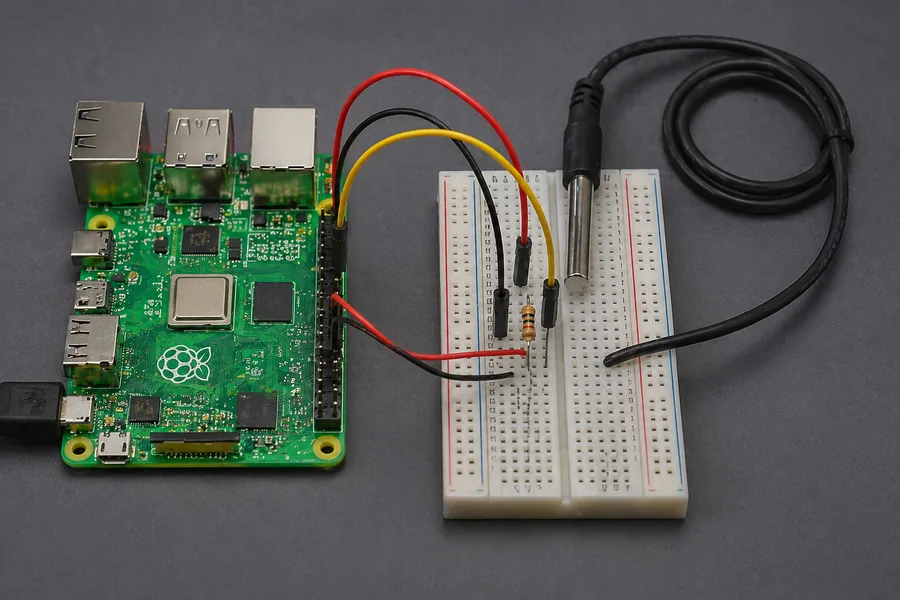
Instruction image: use the wiring view to confirm power, ground, DATA, and the pull-up resistor before turning the Pi on.
Quick Test
Hold your hand around the sensor for a few seconds. The temperature should climb slightly. If it never changes, check GPIO4 and the pull-up resistor.
Upgrade: Save readings to CSV, graph them later, or show them on a small web dashboard.
✔ Micro-win: You just turned the Pi into a real data logger.
Tutorial 4 · Intermediate
Step 4 of 5 · Capture images
Camera Timelapse
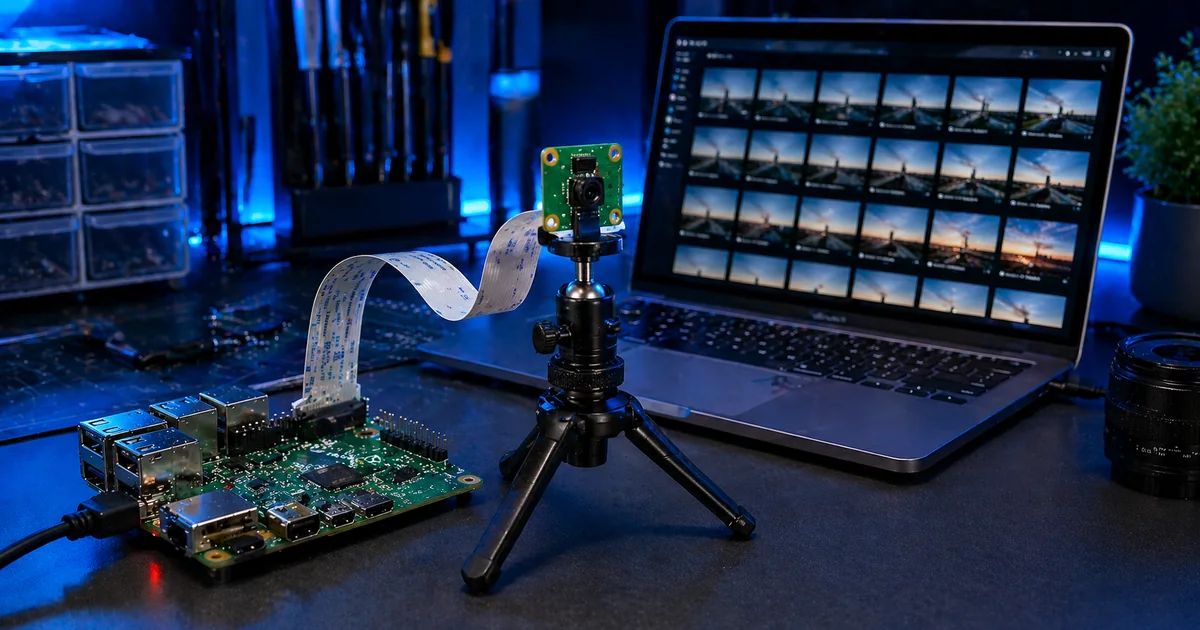
Goal: Capture images at fixed intervals and save them in a folder. This teaches camera setup, file naming, automation, and the basics of computer vision projects.
What should happen: The Pi saves timestamped images automatically, then you can turn them into a timelapse video.
Parts Needed
- Raspberry Pi
- Raspberry Pi Camera Module
- Camera ribbon cable
- Small tripod or camera mount
- Stable power supply
Helpful Camera Parts
A camera module, mount, and stable Pi power supply prevent the two most common beginner problems: shaky footage and random camera failures.
View Camera Parts →
Connection Steps
- Shut down and unplug the Pi.
- Open the camera connector latch gently.
- Insert the ribbon cable straight and fully.
- Close the latch and avoid sharp cable bends.
- Mount the camera so it does not move during capture.
Easy Build Steps
- Connect the camera module.
- Boot the Pi and test camera support.
- Create a folder named
timelapse.
- Create
timelapse.py.
- Run the script and check the output folder.
Mistakes to Avoid
- Ribbon cable inserted backward or not fully seated.
- Testing in a dark room and thinking the camera failed.
- Using weak power that causes random crashes.
- Moving the camera during the capture sequence.
Final Boss Timelapse Code
from picamera2 import Picamera2
from time import sleep
from datetime import datetime
import os

folder = "timelapse"
os.makedirs(folder, exist_ok=True)

camera = Picamera2()
camera.start()
sleep(2)

interval = 10
shots = 20

for i in range(shots):
    timestamp = datetime.now().strftime("%Y-%m-%d_%H-%M-%S")
    filename = f"{folder}/img_{timestamp}.jpg"

    camera.capture_file(filename)
    print(f"[{i + 1}/{shots}] Saved: {filename}")

    sleep(interval)

print("Timelapse complete.")
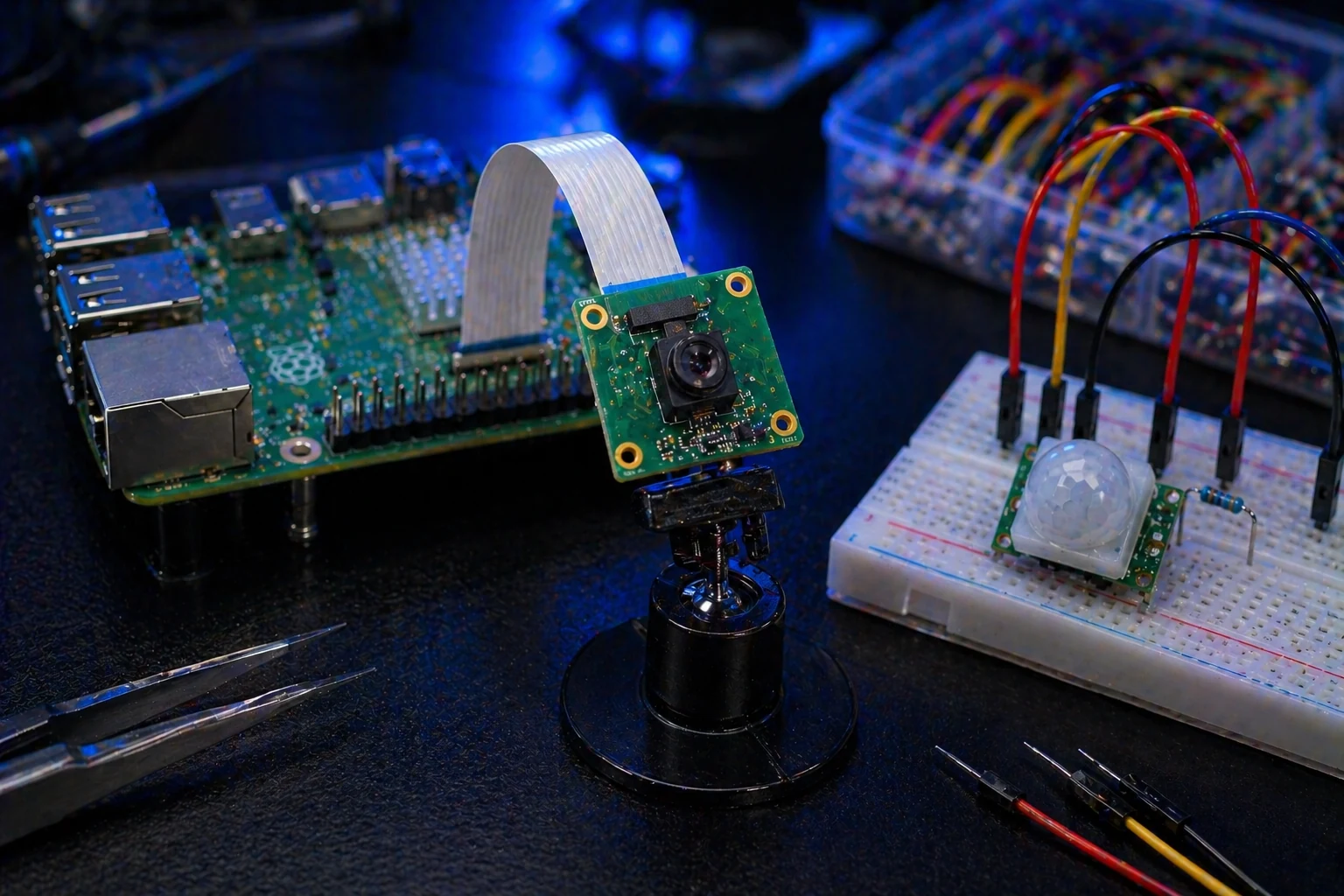
Instruction image: confirm the ribbon cable is straight, fully seated, and locked before booting the Pi.
Quick Test
Open the timelapse folder. You should see timestamped images. If no images appear, test the camera connection before editing the script.
Upgrade: Use motion detection to capture images only when something moves.
✔ Micro-win: You just built an automated image capture system.
Tutorial 5 · Beginner Plus
Step 5 of 5 · Detect motion
PIR Motion Sensor Alert
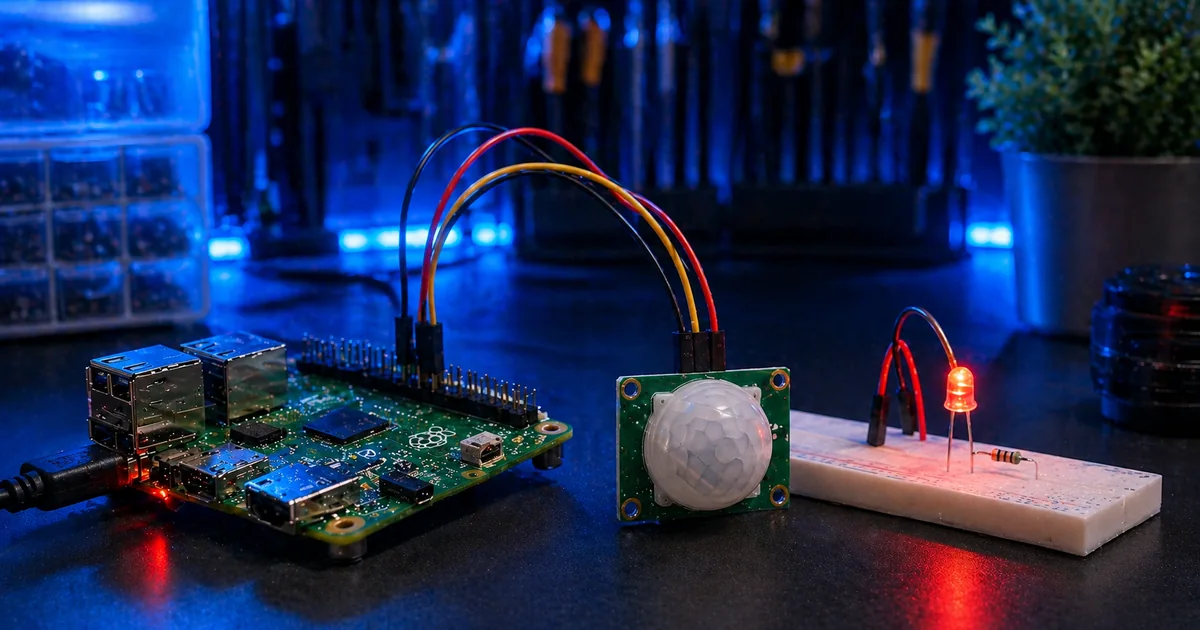
Goal: Detect motion with a PIR sensor, trigger an LED alert, and optionally capture an image with the camera. This turns the Pi into a basic event-driven automation system.
What should happen: Move in front of the sensor and the terminal prints an alert. With the combo code, the camera saves a photo too.
Parts Needed
- Raspberry Pi
- PIR motion sensor module
- 3 jumper wires
- Optional LED and resistor for a visible alert
- Optional camera module for motion snapshots
Helpful Motion Parts
A PIR sensor module is one of the easiest upgrades for smart rooms, simple alarms, camera triggers, and robot awareness projects.
View PIR Parts →
Wiring Steps
- Connect PIR VCC to 5V if your PIR module requires it.
- Connect PIR GND to Pi GND.
- Connect PIR OUT to GPIO14, physical pin 8.
- Optional: connect an LED to GPIO17 with a resistor for a visual alert.
- Give the PIR sensor 30 to 60 seconds to settle after power-up.
Easy Build Steps
- Wire the PIR sensor while the Pi is powered off.
- Boot the Pi and wait for the PIR to stabilize.
- Create
motion_alert.py.
- Run the script.
- Walk across the sensor view, not straight at it.
Mistakes to Avoid
- Testing immediately before the PIR has settled.
- Pointing the PIR at a window, vent, fan, or heat source.
- Using the wrong OUT pin in code.
- Expecting perfect detection when walking directly toward the sensor.
Starter Code: Motion Alert
from gpiozero import MotionSensor
from signal import pause

pir = MotionSensor(14)

def motion_seen():
    print("Motion detected!")

pir.when_motion = motion_seen

pause()
Final Boss Upgrade: Motion Triggers LED + Camera
from gpiozero import MotionSensor, LED
from picamera2 import Picamera2
from datetime import datetime
from signal import pause
import os

pir = MotionSensor(14)
led = LED(17)

camera = Picamera2()
camera.start()

folder = "motion_captures"
os.makedirs(folder, exist_ok=True)

def motion_detected():
    led.on()

    timestamp = datetime.now().strftime("%Y-%m-%d_%H-%M-%S")
    filename = f"{folder}/motion_{timestamp}.jpg"

    camera.capture_file(filename)
    print("Motion detected! Image saved:", filename)

def motion_stopped():
    led.off()
    print("Motion stopped")

pir.when_motion = motion_detected
pir.when_no_motion = motion_stopped

pause()
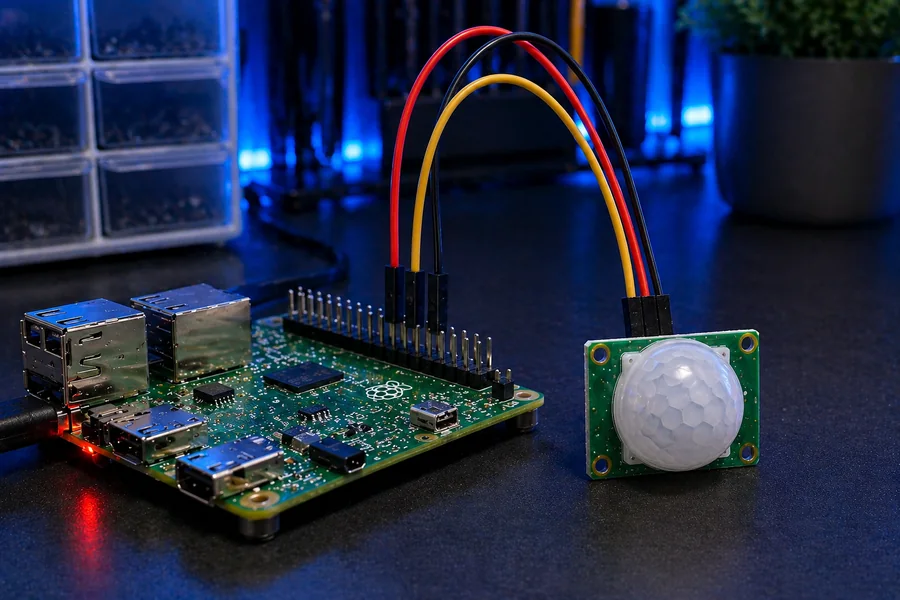
Instruction image: verify VCC, OUT, and GND before testing. PIR modules often need a short warm-up period.
Quick Test
Wait one minute after boot, then move across the sensor’s field of view. If it triggers constantly, aim it away from windows, vents, and heat sources.
Upgrade: Combine this with the camera lesson to save a photo only when motion is detected.
✔ Micro-win: You just built the foundation for a motion-triggered smart camera.