ESP32-CAM Security Camera with Home Assistant: DIY Build Guide
Build a low-cost ESP32-CAM front-door camera, then connect its video stream to Home Assistant. Learn wiring, firmware, optional motion sensing, snapshots, and mobile alerts.
Can an ESP32-CAM work with Home Assistant? Yes. First flash and test the CameraWebServer stream on your Wi-Fi network, then configure a compatible camera integration in Home Assistant. Motion alerts and AI person detection are separate features that need additional sensors or software.
Prepare an ESP32-CAM, stable 5V power, and a USB-to-serial adapter with 3.3V logic.
Wire the board for flashing and upload the Arduino CameraWebServer example.
Remove the GPIO0-to-GND jumper, restart, and verify live video in a browser.
Add the stream to Home Assistant using a compatible camera integration.
Optionally configure a motion sensor, snapshot action, and mobile notification.
Before you begin: This is a DIY learning project, not a certified alarm or emergency monitoring device. Keep the camera on a trusted network and do not expose an unsecured camera stream directly to the internet.
What You Are Building
Start with a working ESP32-CAM live stream, then integrate it into Home Assistant. Motion-triggered notifications require a configured sensor or detection integration; face recognition requires additional software and processing.
Live front-door cameraView your ESP32-CAM stream from your local network or Home Assistant dashboard.
Motion-triggered snapshotsUse motion detection to capture useful evidence instead of recording useless empty footage.
Face detection workflowUse ESP32-CAM face detection concepts or upgrade later with a stronger AI server.
Mobile notificationsWith a configured motion entity and mobile app, send a front-door motion alert and snapshot.
Reality check: ESP32-CAM is powerful for the price, but it is not a $300 AI camera. Keep expectations sane: use it for learning, local monitoring, snapshots, and smart-home automation. For heavy AI recognition, let Home Assistant, Frigate, or another local server do the harder work.
Parts List
These are the core parts for the build. The links below help you find example parts. Check current specifications, availability, and seller details before buying.
ESP32-CAM module
Main camera board with WiFi and OV2640 camera. This is the brain and camera for the project.
Upgrade option: Want a finished consumer-style version of this idea? Compare AI doorbell cameras here: View AI doorbell cameras on Amazon.
Step 1: Mount the ESP32-CAM Near the Door
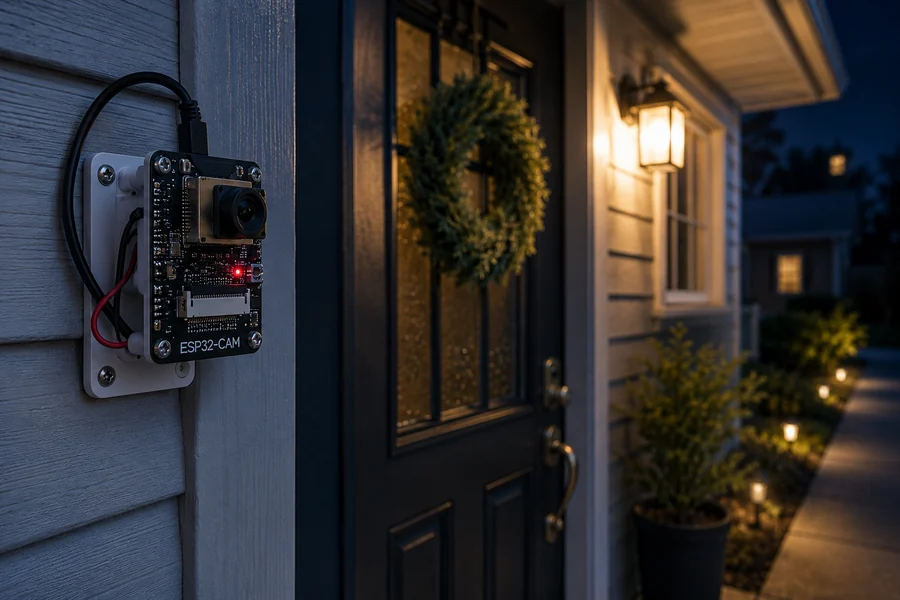
Place the camera where it can see faces clearly: about chest to head height, angled slightly downward, and close enough to the porch light to avoid muddy night footage.
Front-door install concept: mount the board securely, protect it from rain, and keep the lens aimed at the walkway.
Important: Do not leave a bare ESP32-CAM exposed to weather. Use a small enclosure, seal cable entry points, and keep the board dry.
Step 2: Wire the ESP32-CAM
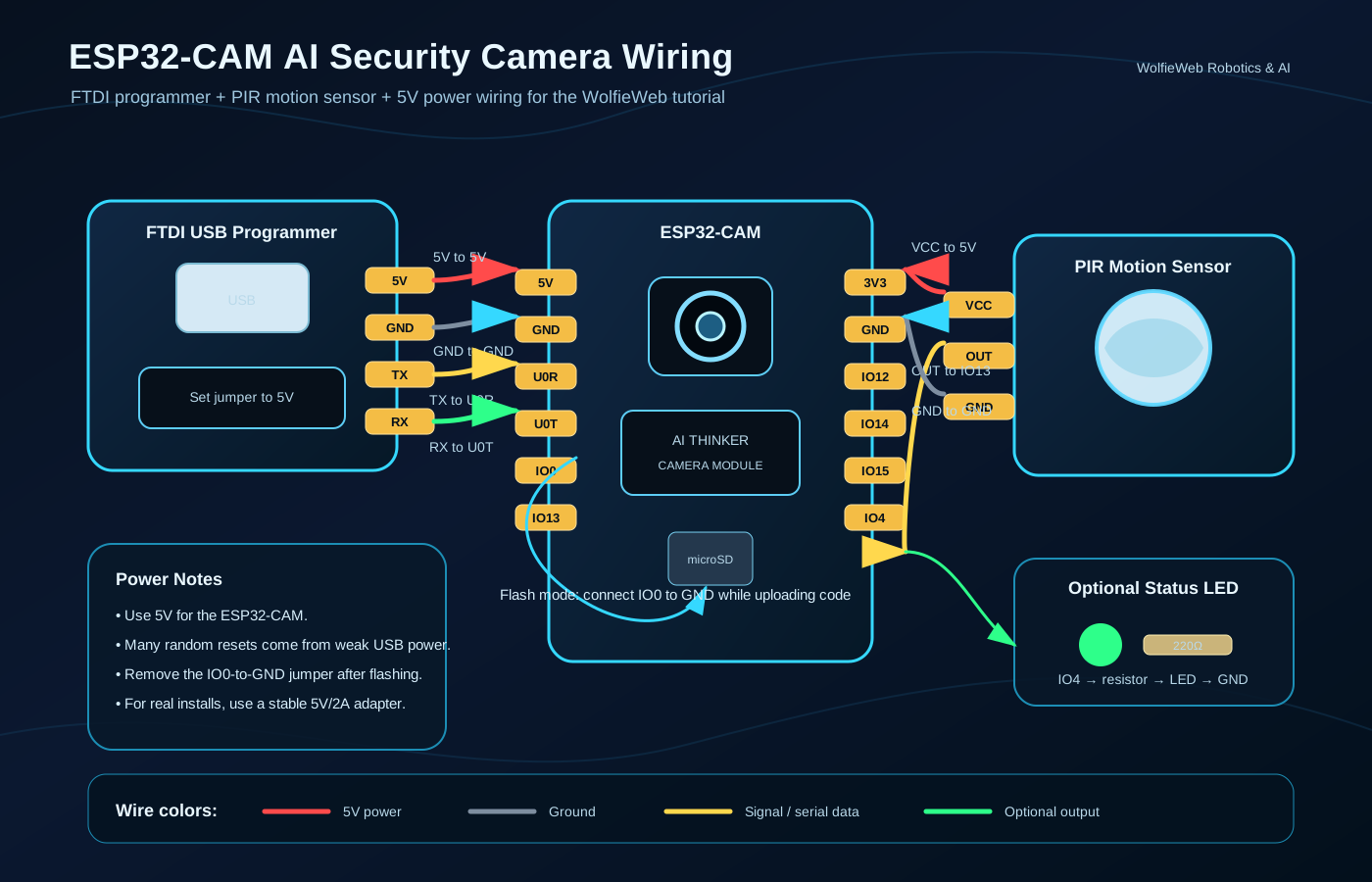
The ESP32-CAM has no built-in USB port, so you normally flash it with an FTDI adapter. During flashing, GPIO0 is connected to GND. After flashing, remove that GPIO0-to-GND jumper and reboot the board.
Wiring diagram for flashing, powering, and adding a PIR motion sensor trigger.
Connect a suitable 5V supply to the ESP32-CAM 5V pin and share GND with the USB-to-serial adapter. Use 3.3V UART logic levels; verify the adapter specifications before wiring.
Connect FTDI TX to ESP32-CAM U0R and FTDI RX to ESP32-CAM U0T.
For flashing only, connect GPIO0 to GND before pressing reset.
If adding a PIR, check its supply voltage and output level first. On compatible ESP32-CAM boards, GPIO13 may be available when the microSD slot is unused; ensure the PIR output is 3.3V-safe and that your firmware actually reads the pin.
Step 3: Flash the Camera Firmware
The simplest starting point is the ESP32 CameraWebServer example from the Arduino IDE. It gives you a working live stream first. Once the stream works, then you can add Home Assistant and automations.
Install the Arduino IDE.
Add ESP32 board support in Board Manager.
Select an ESP32-CAM board profile such as AI Thinker ESP32-CAM.
Open the CameraWebServer example.
Enter your WiFi name and password.
Upload while GPIO0 is connected to GND.
Remove GPIO0 from GND, press reset, and open the serial monitor to find the camera IP address.
// Basic ESP32-CAM idea
// 1. Connect WiFi
// 2. Start camera server
// 3. Visit the board IP address in your browser
// 4. Add that stream to Home Assistant
Step 4: Connect the Camera to Home Assistant
Once the ESP32-CAM is streaming on your local network, add a compatible stream or snapshot URL through a Home Assistant camera integration appropriate to your firmware. Confirm the camera entity works in the dashboard before building automations. CameraWebServer alone does not create a motion sensor or face-recognition entity.
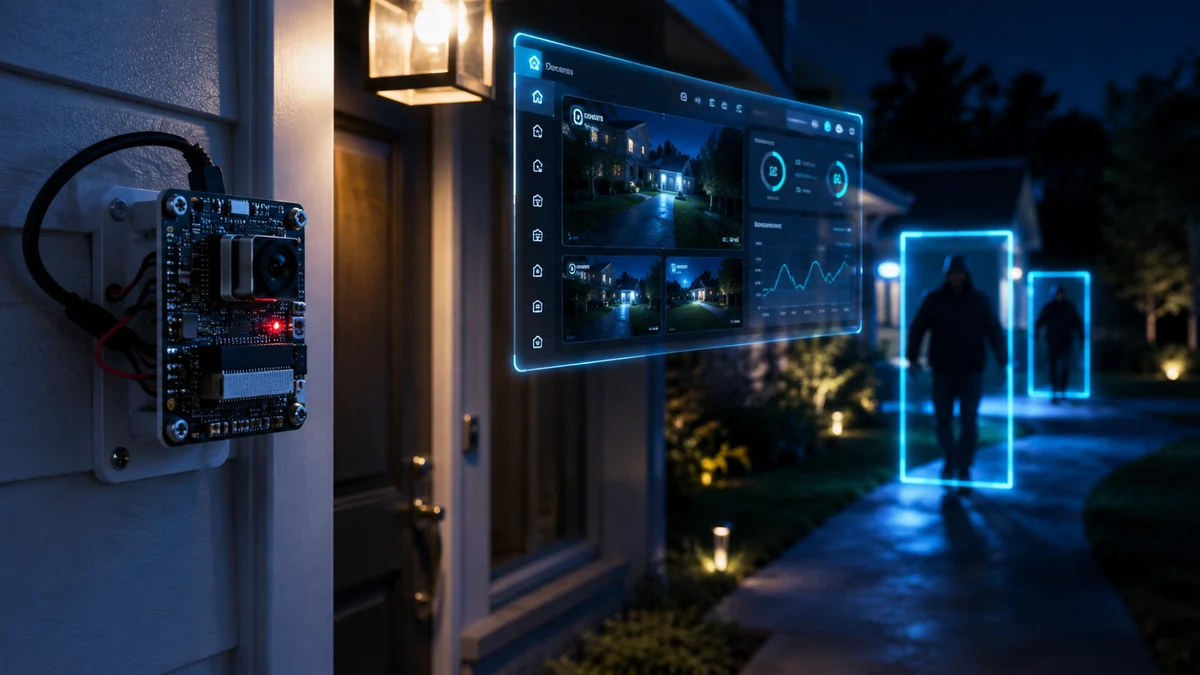
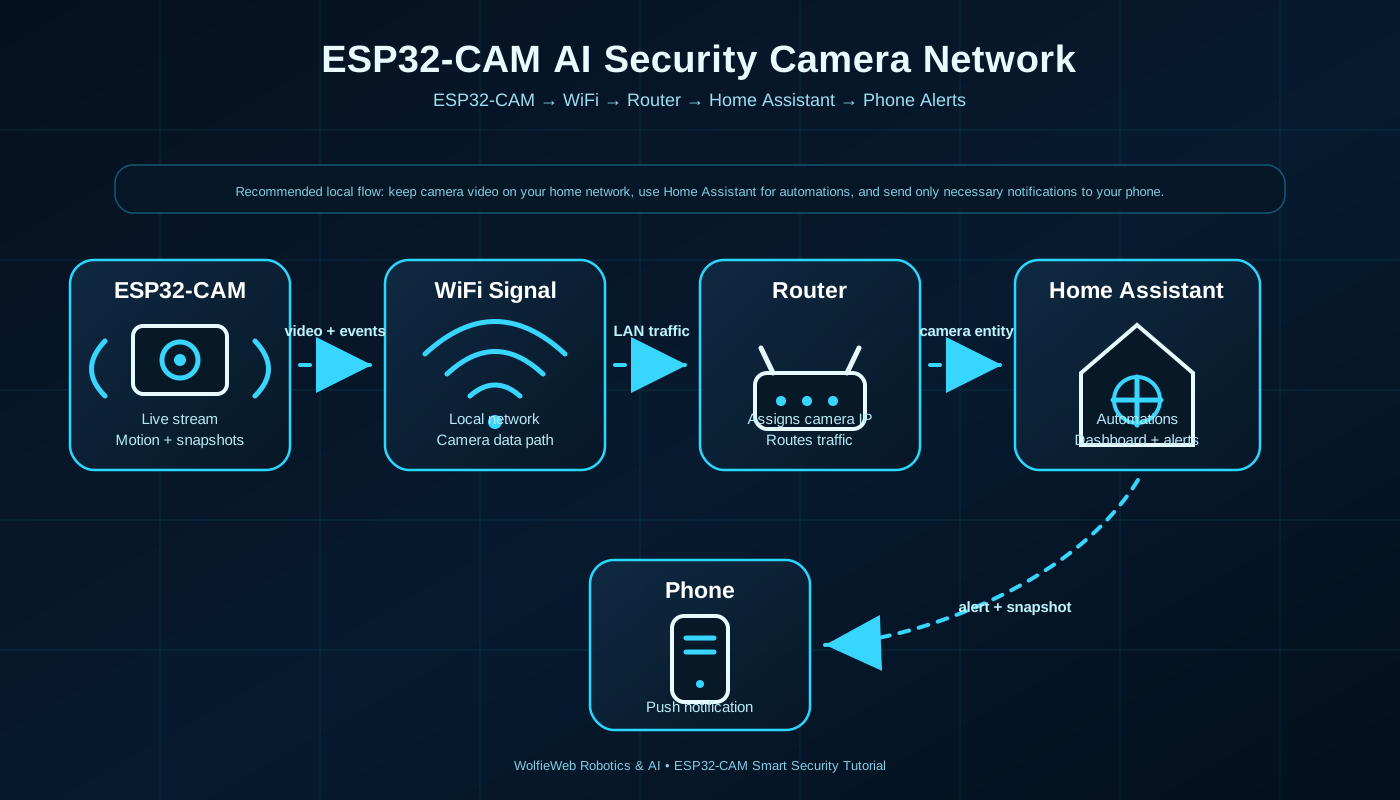
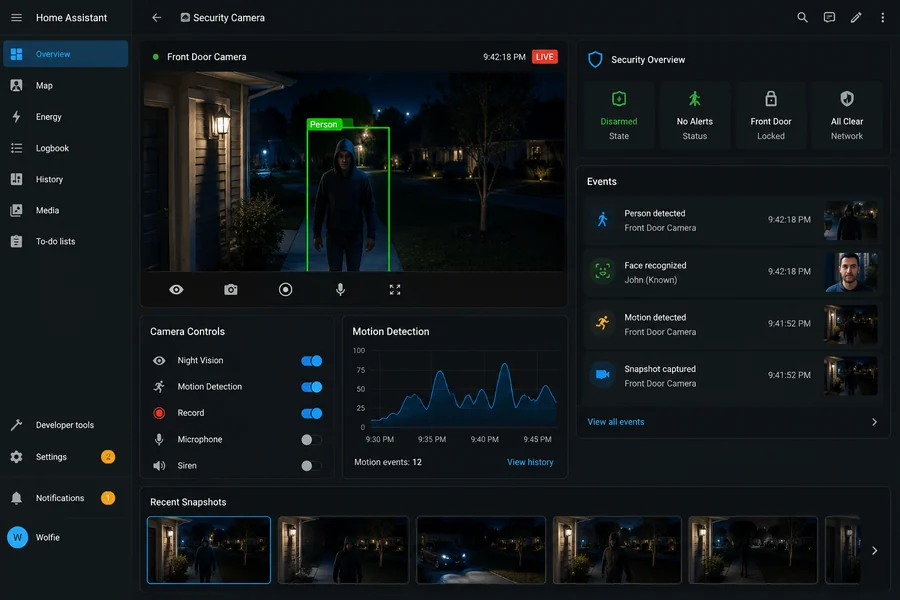
Network flow: ESP32-CAM sends video through WiFi to the router, Home Assistant reads the stream, and your phone receives alerts.Home Assistant dashboard concept with live view, motion events, recent snapshots, and camera controls.
Step 5: Add Motion and Face Detection Logic
For a beginner-friendly build, configure a PIR sensor through supported firmware or use a separate Home Assistant motion sensor. Once that sensor produces a working binary_sensor entity, build a motion automation. Face detection or person classification is an optional later upgrade using compatible software such as a dedicated local detection server; it is not provided automatically by CameraWebServer.
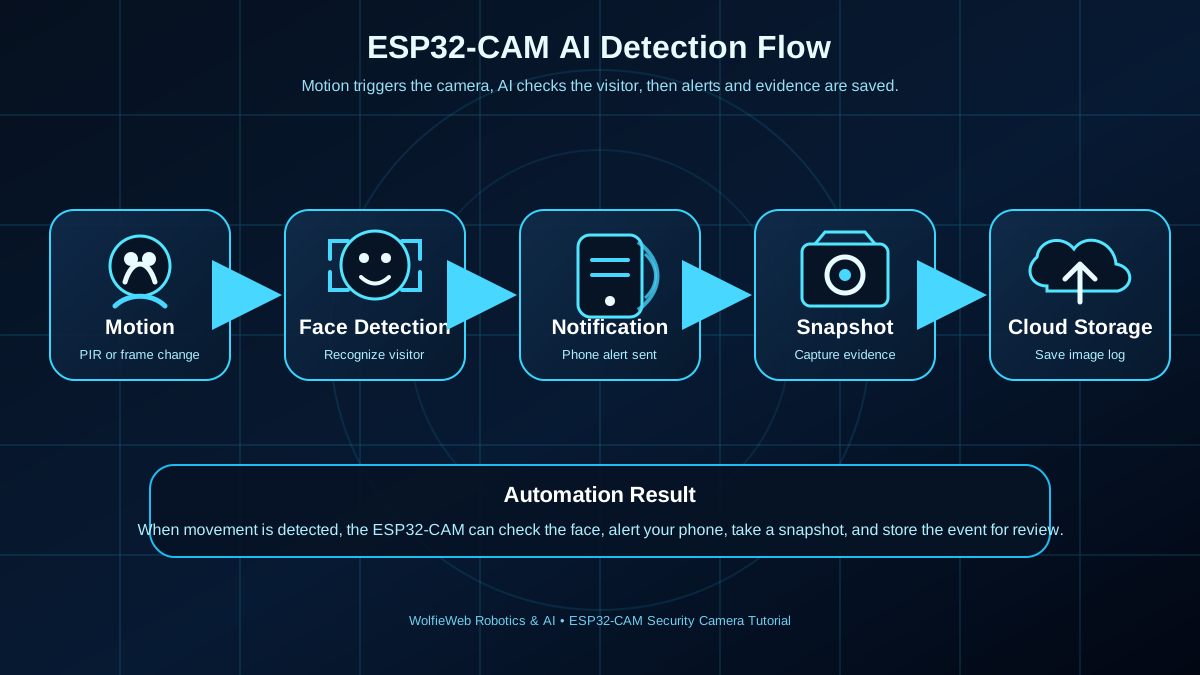
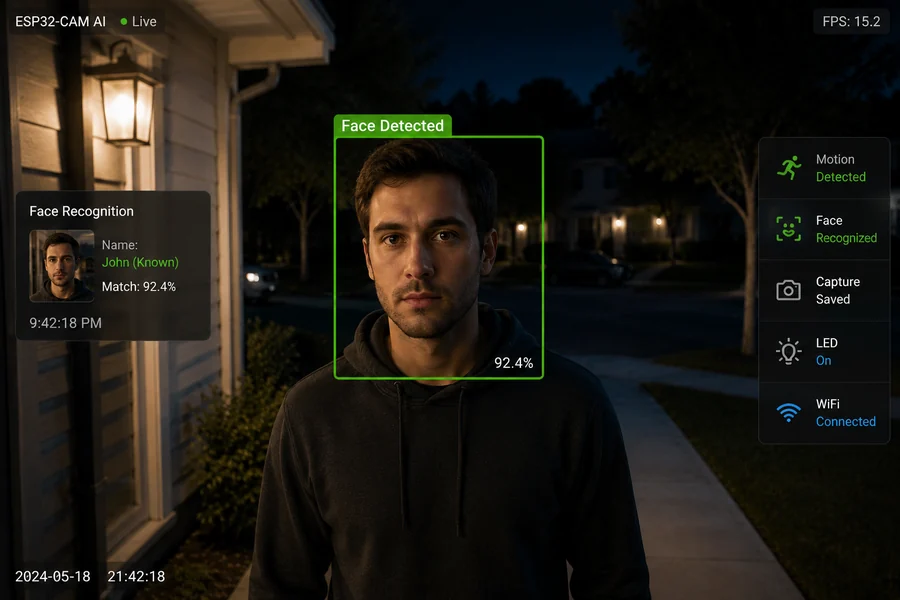
Detection workflow: motion starts the event, face detection checks the scene, alerts go out, snapshots are saved, and storage keeps the history.Face detection in action: the system flags a face, labels the event, and prepares a snapshot for review.
Privacy note: Use face recognition responsibly. Keep processing local when possible, avoid recording public areas, and follow local laws before pointing cameras at sidewalks, neighbors, or shared spaces.
Step 6: Send Phone Alerts with Snapshots
Once your motion sensor, camera entity, and Home Assistant mobile app are configured, an automation can capture a snapshot and notify your phone. Replace the example entity IDs with your own; this example reports motion, not confirmed person recognition.
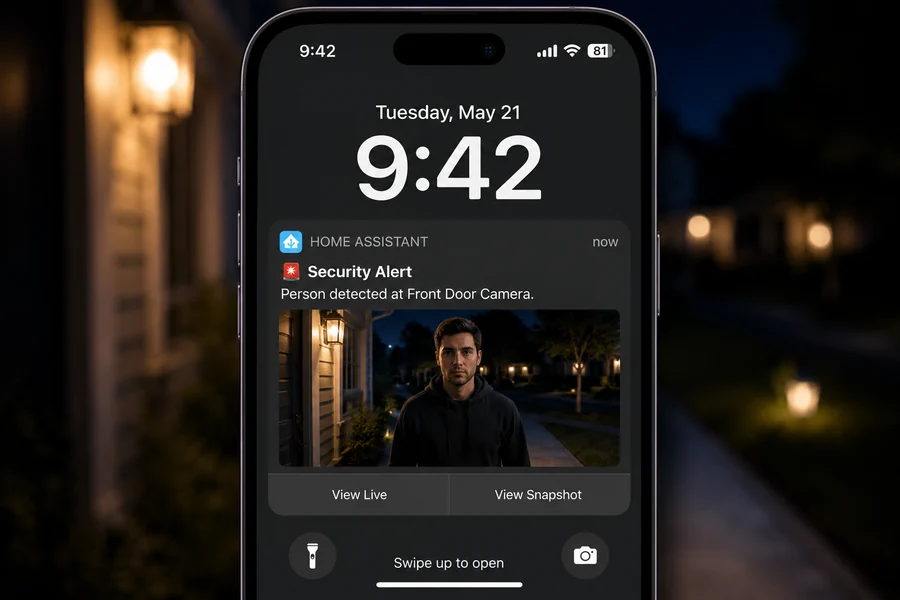
Phone notification screenshot style: motion detected, camera location, snapshot preview, and quick action buttons.
Example automation: Replace all sample entity IDs with the ones in your installation. Your motion entity and camera entity must already exist, and the mobile app must be registered. Ensure Home Assistant can write to /config/www/ before using this example.
alias: Front Door Camera Alert
trigger:
  - platform: state
    entity_id: binary_sensor.front_door_motion
    to: "on"
action:
  - service: camera.snapshot
    target:
      entity_id: camera.front_door_esp32
    data:
      filename: /config/www/front_door_latest.jpg
  - service: notify.mobile_app_your_phone
    data:
      title: "Security Alert"
      message: "Motion detected at the front door."
      data:
        image: /local/front_door_latest.jpg
Step 7: Save Snapshots and Build an Event History
Do not rely only on live view. Save snapshots when events happen. Keep the newest image for notifications and archive important events to Home Assistant storage, a NAS, or cloud sync.
Create a folder for camera snapshots.
Use timestamped filenames so old events are not overwritten.
Keep a low-resolution version for mobile alerts.
Delete old snapshots automatically after a set number of days.
Helpful ESP32-CAM Videos
Use these videos alongside the guide for camera setup, Home Assistant integration, and face-detection concepts. Each thumbnail opens the selected video in the lightbox.
Video 1: ESP32-CAM setup
Use this first video to help readers get the ESP32-CAM ready, powered, connected, and streaming.
Check TX/RX crossover, common ground, GPIO0 to GND during flashing, 3.3V UART logic, correct board selection, and reset timing.
Camera reboots
Use a stronger 5V supply. ESP32-CAM is picky with weak USB ports.
No stream appears
Open Serial Monitor, confirm WiFi connection, and verify the IP address.
Bad night image
Add better porch lighting or use an IR-capable camera module and matching illumination.
ESP32-CAM Security Camera FAQ
Can ESP32-CAM connect to Home Assistant?
Yes, provided the firmware exposes a compatible camera stream or snapshot endpoint. Test the local stream first, then configure the appropriate Home Assistant camera integration.
Does ESP32-CAM detect people automatically?
No. The basic CameraWebServer tutorial provides camera streaming. Motion sensing, face detection, and reliable person classification require additional hardware, firmware, or software.
Why does my ESP32-CAM keep restarting?
Unstable power is a common cause. Use a suitable regulated 5V supply, check wiring and common ground, and look for brownout messages in the serial monitor.
Can I use an ESP32-CAM outdoors?
Only with appropriate weather protection, safe power wiring, and attention to heat, moisture, and local privacy requirements. A bare ESP32-CAM board is not weatherproof.
Recommended Next Builds
AI Doorbell Camera
Add a button, chime, speaker, and visitor snapshot workflow.